Introduction to ggpaintr
intro-ggpaintr.RmdIntroduction
Grammar of Graphics & ggplot2
First proposed by (Wilkinson, Anand, and Grossman 2005), the grammar of graphics defines a way of concisely breaking up graphs into semantic components for data visualization. Analogous to the grammar in English, the grammar of graphics tells us which “words” should be used to make up a “sentence”. It allows users to create a complex graphic by assembling multiple independent components.
The open-sourced R package ggplot2 (Hadley Wickham
2010) implemented this grammar of graphics with some
modifications and refinements, leading to what is now called a ‘’layered
grammar’’. ggplot2 built a mapping from the data to
geometric objects in multiple different layers drawn on a coordinate
system. As an example, the code following this layered grammar to
complete a line chart can include:
A base layer with raw data;
A layer for drawing the lines;
A layer for specifying x, y labels and the title;
A layer for legend settings;
A layer for choosing background theme;
…
Each of the above functionalities can be modularized into one or
several functions. Modules are assembled together at high level of
abstraction according to the “grammar” of ggplot2, to
eventually show the graphic we desire.
Compared to the plotting functions in vanilla R, ggplot2
is more convenient to use, with higher flexibility and readability. It
is considered one of the most popular R package (H. Wickham
2016).
Building a Shiny App with Graphical Visualization
Shiny is a framework for creating web applications from R. Shiny apps
built from R shiny help users
interact with the data instead of facing the ice-cold coding console.
Together with ggplot2, it provides possibility of creating
elegant data visualizations with large flexibility. Interactive
graphical visualizations are extremely helpful in presentations or
statistical education (Doi
et al. 2016), for providing the audience with a clear and
straight forward view of data analysis.
However, the procedure of building such a fancy shiny app may not be as fancy as it comes out. It requires an extensive knowledge about shiny and comes at a cost of heavy and tedious programming work:
- The implementation of each component in the grammar of graphics requires an unignorable amount of coding;
- Some functionalities in
ggplot2may not be able to realized easily and intuitively in shiny (e.g., the customization of colors); - Most importantly, apart from the code for individual ggplot components, there’s a lot of extra work to do for assembling them into a real shiny app.
Our Contribution
In this manuscript we introduce our package ggpaintr, a package for building shiny apps with ggplot2 visualizations. Using our package, the programming work for building a data-visualization shiny app can be dramatically reduced, while the coding structure is rather simplified and mimics the way ggplot2 works in R.
Why ggpaintr can be useful
The goal of ggpaintr is to make it easy for writing
shiny apps. ggpaintr is a collection of highly modularized
shiny app components. It offers the possibility to build a shiny app for
ggplot2 data visualization with minimum effort. The resulting shiny app
can achieve broader functionality than the ggplot GUI, while the code
to accomplish this is much more readable and logical.
Our package has the following advantages:
-
Simplicity
Not only is the code using
ggpaintrmuch shorter, it is also much more readable comparing to using vanilla shiny functions. -
Flexibility
We have implemented ready-to-use modules in
ggpaintrfor most of the commonly usedggplot2arguments. By calling those modules directly users can achieve almost any complex functionality they desire. As an example, a shiny app built from our pacakge can achieve the following visualization:ggplot(data) + geom_point(aes(x, y, color, fill), size, alpha) + facet_grid(z ~ w) + coord_flip() + labs(x = ..., y = ..., title = ...) + theme(...) + ... -
Extensibility
Moreover, if you are familiar with shiny and want to extend the functionality to something we haven’t implemented, our package also offers the ability (and instructions) of providing your own ui and server functions, and even adding new modules into the package (?).
ggpaintr is a user-friendly package. Anyone with some
knowledge of ggplot2 can start building a shiny app with
basic ggplot output like the one shown below, after a self-teaching of
ggpaintr for less than 10 minutes:
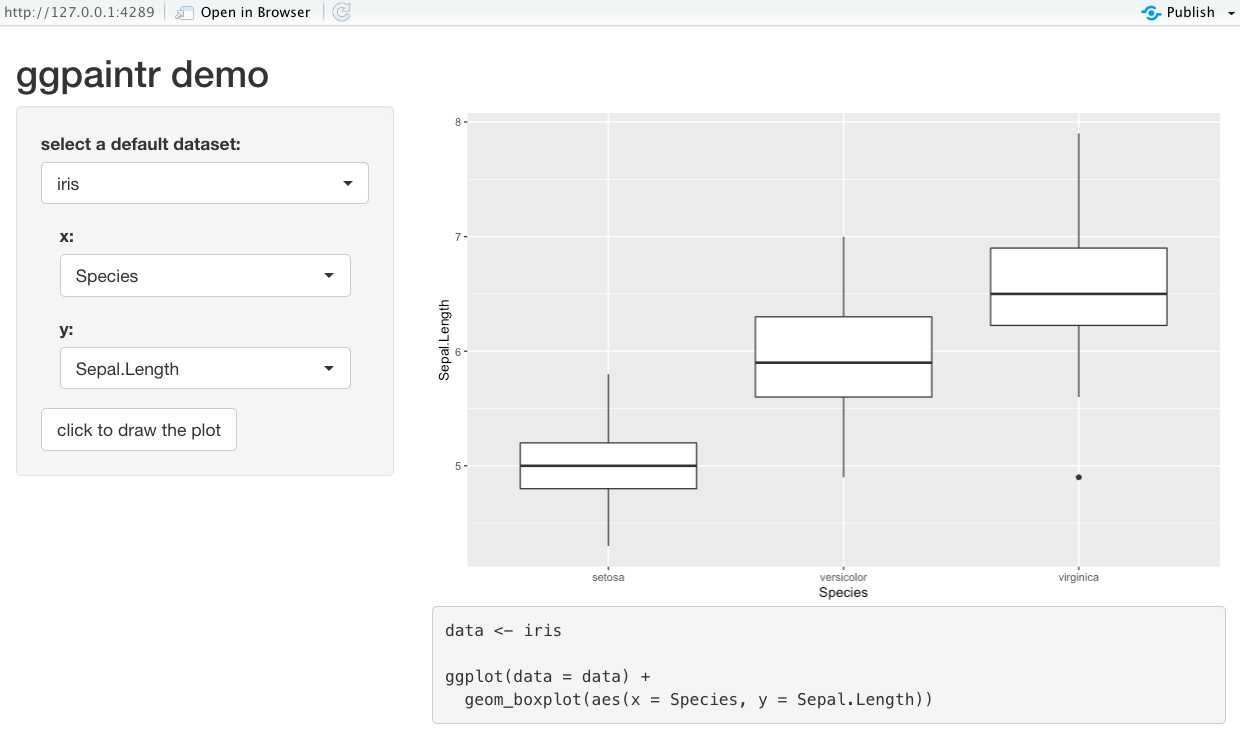
Sample Iris Shiny App
And more complex options and functionalities can be added and
achieved using similar logic within a few lines of code. Currently
ggpaintr has implemented most of the commonly used ggplot2
functions and their parameter options. You will learn in details about
how to implement them in the next section.
We expect this package to be useful in the following scenarios:
-
Statistical education of graphics
Our package offers a easier and more flexible way of building graphical shiny apps. Statistics instructors can develop interactive graphical UIs on their own with their specific demands. By transforming R’s programming language into a point-and-click style, these UIs can be used to introduce different statistical graphics to fresh students in this field.
-
Statistical education of
R/ggplot2Along with the plot, shiny apps built from our package also interactively show the complete R code for generating such plot. This can be extremely useful for beginners in R or ggplot2.
-
Graphical demos in presentation
The most important characteristic of
ggpaintris that users can customize their app based on their demand and preference. We have implemented modules for most of the commonly used functionalities in ggplot2, and the grammar used inggpaintris also similar. As long as you are familiar with ggplot2, you should not find it hard to build your own shiny app. With some extra knowledge of shiny, you also have the ability to convert it into a fancier style as a formal presentation demo.
Case Study 1: ggpaintr demo
Let’s revisit the demo shiny app presented in Figure X. After
selecting a dataset, the shiny app allows users to map variables (or
columns) in the dataset to x and y. It
generates a plot using ggplot2 and shows the corresponding
R code. The reactivity on the mappings are built up so that
changing mappings variables for x or y will
change the resulting plot after clicking the “draw” button. Moreover,
changing the selected dataset will automatically update the available
choices for x and y. Without the help of
ggpaintr, building such a shiny app at least requires the
following steps:
- have UI components for
xandyso thatinput$xandinput$yare available - dynamically render UI components for
xandyso that the available choices depend on the selected data set - figure out how to generate a
ggplot2plot usinginput$xandinput$ysince the inputs are strings. One option is to useaes_string() - figure out the
Rcode for generating the resulting plot - render the plot
- render the code
This might look involved, but what if this shiny app needs more
functionalities? If the shiny app needs more mappings, such as
color or fill, it will add more UI component,
modify the server part so that the inputs can be correctly captured. If
the shiny app wants to allow users to flip the coordinates using
coord_flip() or adding labels using labs(),
building this shiny app becomes even more involved. Additionally,
maintaining and updating the shiny app can be challenging as well since
many aspects of the shiny app would be modified.
However, we can build such a shiny app using ggpaintr
with the following code.
library(ggpaintr)
library(shiny)
library(tidyverse)
library(shinyWidgets)
library(palmerpenguins)

# Define UI for application that draws a histogram
ui <- fluidPage(

  # Application title
  titlePanel("ggpaintr demo"),

  # Sidebar with a slider input for number of bins
  sidebarLayout(
    sidebarPanel(
      pickerInput("defaultData", "select a default dataset:",
                  choices = c("iris", "mtcars","penguins", "faithfuld"),
                  selected = "",
                  multiple = TRUE,
                  options = pickerOptions(maxOptions = 1)),
      uiOutput("controlPanel"),
      actionButton("draw", "click to draw the plot"),
    ),

    # Show a plot of the generated distribution
    mainPanel(
      plotOutput("outputPlot"),
      verbatimTextOutput('outputCode')
    )
  )
)

# Define server logic required to draw a histogram
server <- function(input, output) {

  control_id <- "control_id"

  # data
  data_container <- reactive({
    req(input$defaultData)
    get(input$defaultData)
  })

  # construct paintr object
  paintr_rctv <- reactive({

    req(data_container())

    paintr(control_id,
           data_container(), data_path = input$defaultData,
           geom_boxplot(aes(x, y))
    )

  })

  # place ui
  output$controlPanel <- renderUI({
    req(paintr_rctv())

    column(
      12,
      paintr_get_ui(paintr_rctv(), "x"),
      paintr_get_ui(paintr_rctv(), "y"),
    )
  })

  # take results and plot
  observe({
    req(paintr_rctv(), data_container(), input$defaultData)
    data <- data_container()

    paintr_results <- paintr_plot_code(paintr_rctv())

    # Plot output
    output$outputPlot <- renderPlot({

      paintr_results[['plot']]

    })

    # Code output
    output$outputCode <- renderText({

      paintr_results[['code']]

    })

  }) %>% bindEvent(input$draw)


}

# Run the application
shinyApp(ui = ui, server = server)
Many things are hidden and handled by functions in
ggpaintr, and we will talk about it in detail in the next
section. Updating this shiny app can be relatively easy with the help of
ggpaintr: by changing the ggplot2 alike
expression at line 51 into
# add mapping for fill
geom_boxplot(aes(x, y, fill)) +
  coord_flip +        # allow users to flip coordinate
  labs(x, y, title)   # allow users to add labels for x-axis, y-axis, and title
and adding more elements in
output$controlPanel <- renderUI() at line 57:
# place ui
output$controlPanel <- renderUI({
  req(paintr_rctv())

  column(
    12,
    paintr_get_ui(paintr_rctv(), "x"),
    paintr_get_ui(paintr_rctv(), "y"),
    paintr_get_ui(paintr_rctv(), "fill"),
    paintr_get_ui(paintr_rctv(), "coord_flip"), # add UI for coord_flip()
    paintr_get_ui(paintr_rctv(), "labs"),       # add UI for labs()
  )
})
we can build a shiny app with the updated features as shown in Figure
X. We can see that the shiny app now allows users to flip coordinates
and set labels. The plot and corresponding R code can be
updated accordingly as well.
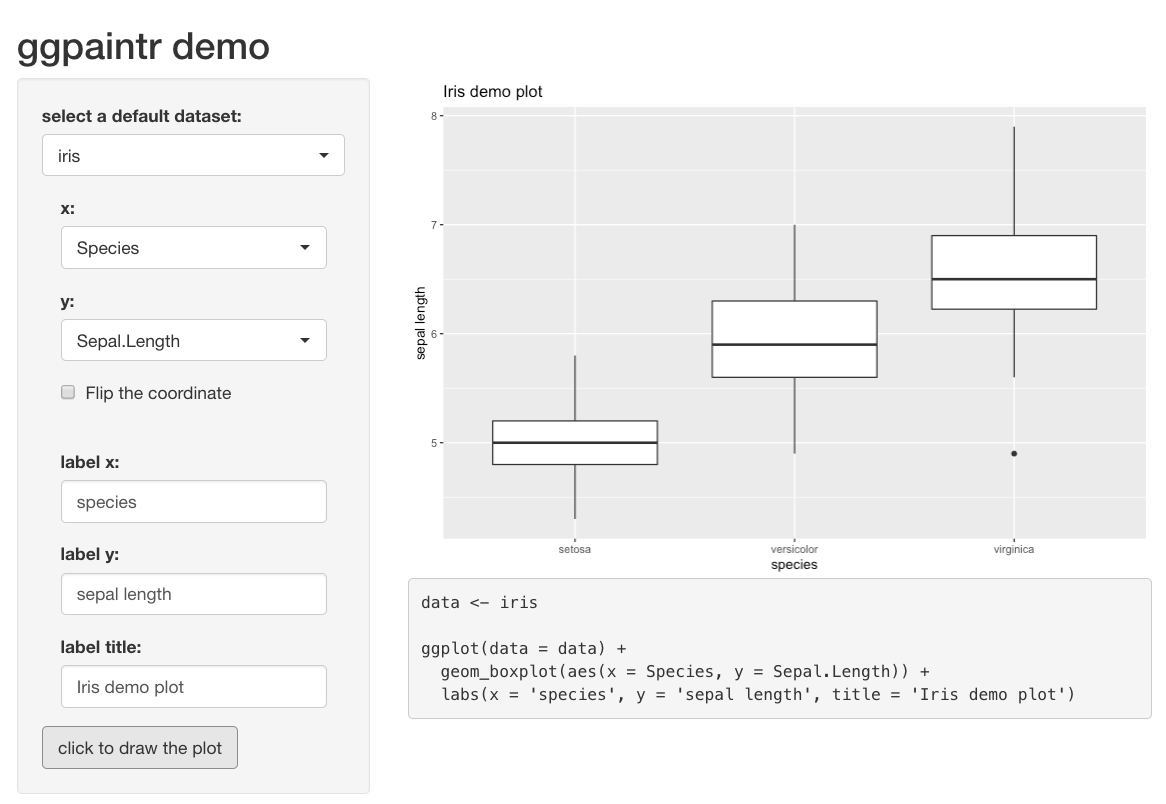
An Extended Iris Shiny App
ggpaintr Design Desicisions
Basic Structure
Making a shiny app with ggpaintr is straightforward.
Since the UI components of mapping (and other plot settings like
coord_flip() or labs()) are dynamically
rendered, we will need a uiOutput(id) on the UI side that
serves as a placeholder for the dynamically rendered UIs, like line 21
in the code of the demo shiny app. Another thing needed on the UI side
is an action button, which is closely related to the design on the
server side. On the server side, there are three building blocks that we
need to take care of:
-
creating a
paintr_objobject usingggpaintr::paintr()as a reactive value (line 45).paintr( id, data, expr, extra_ui = NULL, extra_ui_args = NULL, data_path = "data" )paintr()is the main function ofggpaintrand returns apaintr_objobject. It expects three arguments:-
id: this ID will be used to create anamespaceshared by all UI and module servers related to thispaintr_objobject. -
data: the dataset used to generate the plot -
expr: an expression that controls which functionality should be included in the shiny app.
Note that wrapping the
paintr_objwithreactive()is not required by thepaintr()function, but required by the reactivity in the shiny app. Therefore, one can create apaintr_objusingpaintr()and inspect its structure and elements even outside the context of a shiny app:my_paintr <- paintr("id", iris, geom_boxplot(aes(x, y, fill))) -
-
extract the UI element using
ggpaintr::paintr_get_ui()(line 62).paintr_get_ui( paintr_obj, selected_ui_name, type = "ui", scope = NULL, verbose = FALSE )paintr_get_ui()expects apaintr_objobject and a selected key name for the ui. This selected key name can be any key name that has been implemented inggpaintror a user-defined key name. This will be discussed later in detail.paintr_get_ui()returns the UI element of the selected key name and returnsNULLif the selected key name is not included in theexprofpaintr().paintr_get_ui()can be used to obtain the ID of the selected UI element iftype = "id". This is useful since the ID of the UI element of a selected key name can potentially be arbitrary if the UI function is user-defined. -
generate the plot and corresponding
Rcode usingpaintr_plot_code()(line 72)paintr_plot_code( paintr_obj, selected_color_rctv = NULL, selected_fill_rctv = NULL, color_fill = FALSE, color_group = FALSE, userFUN = NULL, ... )paintr_plot_code()takes apaintr_objobject and executes all of the module server functions in order to generate the resulting plot usingggplot2and the correspondingRcode. Note thatpaintr_plot_code()is designed to be wrapped byobserveEvent(), or equivalently by the combination ofobserveandbindEventintroduced by Shiny 1.6.0. Theisolate()environment provided byobserveEvent()can prevent the module server functions from execution when necessary pieces are missing. As a result, an action button that controlspaintr_plot_code()andobserveEvent()is expected on the UI side.
Control with Expressions
The expression expr in paintr() is
essential to the functionality of ggpaintr. It controls
what type of plot the shiny app can make and what functionalities the
shiny app provides. In general, a valid expr is as the
following:
geom_<chart>(aes(<mapping_1>, <mapping_2>, ...), <geom_args_1>, <geom_args_2>, ...) +
  <plot_settings_1> +
  <plot_settings_2> +
...-
geom_<chart>can be anygeom_functions inggplot2as long as the required aesthetic mappings are correctly provided. -
<mapping_*>are the key names for the aesthetic mapping. Currently, we have implementedx,y,z,fill,color,shape,size, andgroup. These are the most commonly used aesthetic mappings and will allow users of the shiny app to select variables from the dataset for a specific mapping. The UI elements of these mapping key names are implemented withshinyWidgets::pickerInput(), which allow users to select and deselect. -
<geom_args_*>are the key names for arguments passed into thegeom_<chart>function. Currently, we have implementedalpha,size,position, andstat. The UI elements ofsizeandalphaaccept numeric inputs, and the UI elements ofpositionandstatareshinyWidgets::pickerInput(), which provides a list of options for the users. We are able to use strings to controlpositionandstatbut have not included all the string options. Sinceposition,stat, and other arguments of ageom_<chart>can be very complicated inggplot2. We plan to have a more sophisticated way of handling the arguments in the future. -
<plot_settings_*>are the key names for functions that can modify the plot in higher layers. Currently, we have implementedcoord_flip,facet_grid,theme_choose,scale_color,scale_fill,theme(legend.position, legend.direction, legend.box), andlabs(x, y, title, subtitle). Note thattheme_chooseallows users of the shiny app to choose themes from a list (theme_gray(),theme_classic(),theme_bw(),theme_minimal()) and is not a function inggplot2. This shows that both the key names and the ui and server part associated with the key name can be customized. Another thing worth noting is thattheme()inggplot2is very powerful but we only have implementations for three of its parameters:legend.position,legend.direction, andlegend.box. We were able to implement these three parameters because they require strings instead ofggplot2::element_*.labs(x, y, title, subtitle)is similar totheme(). And currently,labscan only set labels forx,y,title, andsubtitle.scale_colorandscale_fillwill be discussed later.
Modularity
The idea of modularized shiny app largely inspired our design of
ggpaintr. Each key name, no matter it is
<mapping>, <geom_args>, or
<plot_settings>, can be considered as a module. It
can have its own ui and server functions and is independent of other key
names’ modules. Once the key name is included in the expr
of paintr(), its ui function will be executed when
paintr() is called, and its server function will be
executed when paintr_plot_code() is called. Modularization
allows us to implement different modules independently and provides the
possibility for other developers to include their own modules. It also
provides the flexibility in building shiny apps using
ggpaintr. At the same time, maintaining and updating
certain features of a shiny app become easier since we only need to work
on the module that is responsible for the change.
Flexibility in UI Design
Developers who build shiny apps using ggpaintr have a
lot of freedom in their design of the user interface. The UI element of
a key name can be obtained by paintr_get_ui(), and a
developer has full control on how or where to put it in the shiny app.
If the default UI element of a key name does not meet the need of a
developer, one can provide their own ui functions and override the
default.
Reactivity
scale_color and scale_fill allow users of
the shiny app to manually select colors for color and
fill, respectively. Since color and
fill have similar behaviors, we will use color
for further explanation. If a numerical variable is mapped to
color, scale_color_gradient() is used, and
users can select one color for low and another color for
high; if a categorical variable is mapped to
color, scale_color_manual() is used, and the
colors selected by the users are passed into the parameter
values of scale_color_manual(). If the
categorical variable has more than 11 levels, the server function for
scale_color will refuse to render the ui for choosing
colors and give a warning message.
The ui for choosing colors are implemented with
colourpicker::colourInput and depends on the selected
variable of color or fill mapping. That is,
the reactivity between scale_color and color
requires the existence of color and some user input, and
thus it cannot be established at the same time when the reactive value
of paintr() is created. To solve this problem, we
implemented a function called
scaleColor_build_reactivity(), which can establish the
reactivity for both color and fill.
scaleColor_build_reactivity(
  id,
  paintr_obj,
  color_or_fill
)-
idshould be the sameidused forpaintr(). This ensures that the modules share the same name space. -
paintr_objis a reactive value of apaintr_objobject created bypaintr() -
color_or_fillspecifiescolororfill
In order to add reactivity for fill in our demo shiny
app, one should make the following changes:
-
change the expression
exprto includescale_filland establish the reactivity:paintr_rctv <- reactive({ req(data_container()) paintr(control_id, data_container(), data_path = input$defaultData, geom_boxplot(aes(x, y, fill)) + coord_flip + labs(x, y, title) + scale_fill ) }) scale_fill_rctv <- scaleColor_build_reactivity(control_id, paintr_rctv, "fill") -
modify the ui output:
output$controlPanel <- renderUI({ req(paintr_rctv()) column( 12, paintr_get_ui(paintr_rctv(), "x"), paintr_get_ui(paintr_rctv(), "y"), paintr_get_ui(paintr_rctv(), "fill"), paintr_get_ui(paintr_rctv(), "coord_flip"), paintr_get_ui(paintr_rctv(), "labs"), paintr_get_ui(paintr_rctv(), "scale_fill") # added for scale_fill ) }) -
pass the reactive object
scale_fill_rctvintopaintr_plot_code()paintr_results <- paintr_plot_code(paintr_rctv(), selected_fill_rctv = scale_fill_rctv)
Case Study 2: ggpaintr_app
A shiny app called ggpaintr_app is built with the
ggpaintr package and included in the package.
ggpaintr_app not only demonstrates the functionality of
ggpaintr, but also serves as a shiny app for those
unfamiliar with the Grammar of Graphics or ggplot2 but want to create a
plot using ggplot2. Some design of ggpaintr_app can also
provide reference for package/shiny app developers.
Home page
Our Home page gives a brief introduction about the ggpaintr package and the corresponding shiny app,it also includes our GitHub repository link, which can direct users to our package codes if needed.
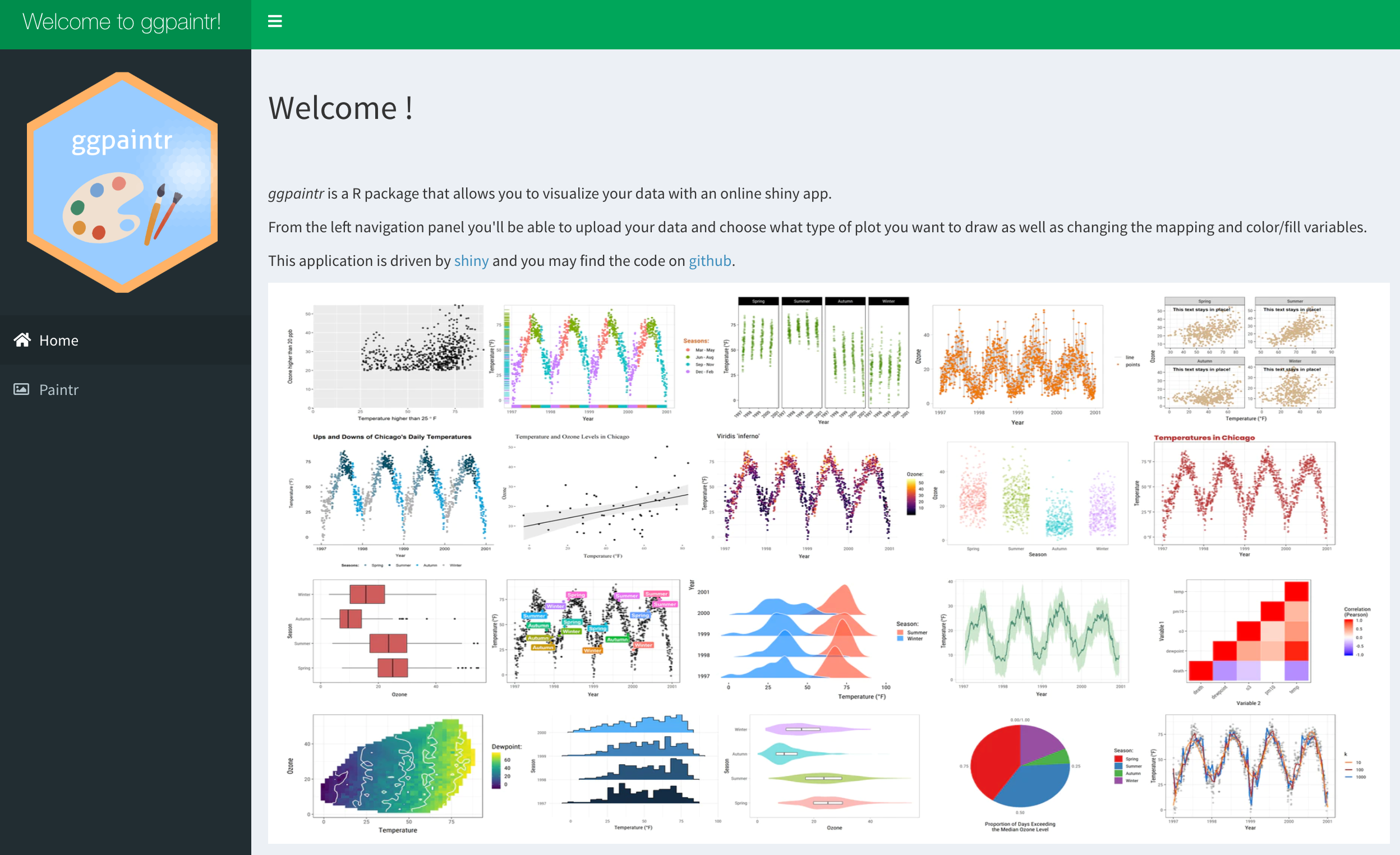
Homepage.
Paintr page
The Paintr page is the main user interface of the app, this page is further divided into three tabs, which are Data, Paint, and Code.
1.Data tab
Under Data, users are allowed to either upload data set from their local file folders, or select a data set from Base R database.
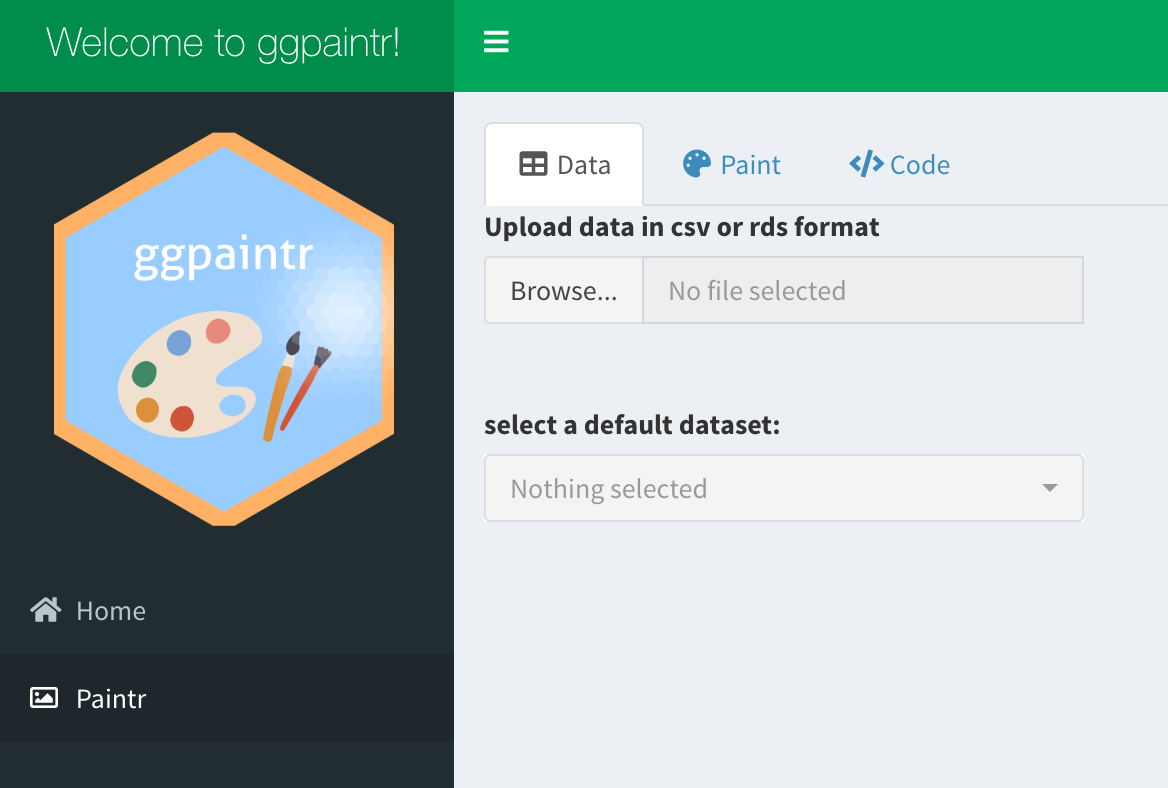
Paintr page.
Once the data set is loaded, users can see partial example of the data set and even filter the data before moving to the next step.
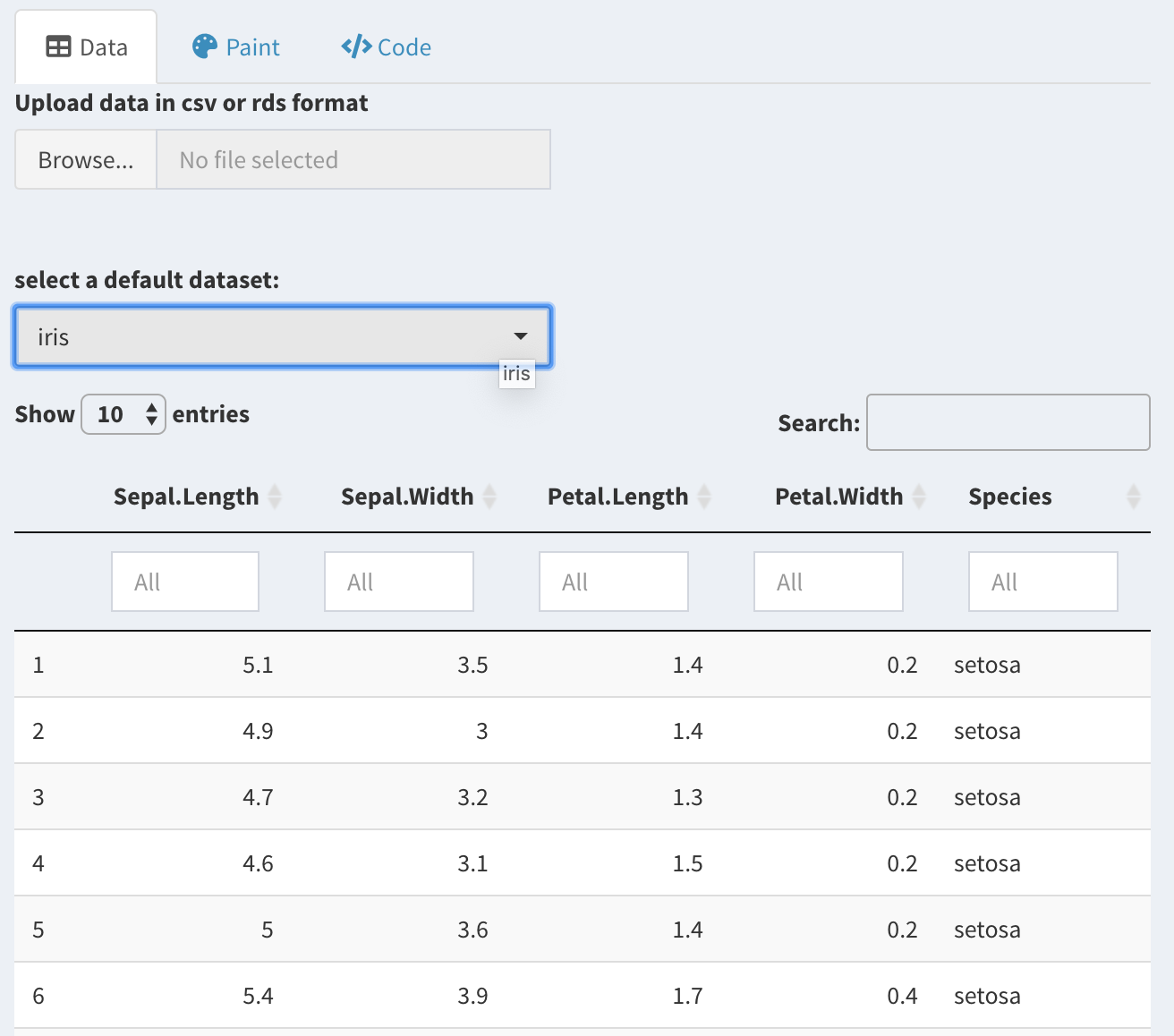
Filter function.
2.Paint tab
Under Paint, there are image icons to present all types of plots currently available in our shiny app, these image icons allow users to choose the type of plot they would like to draw in a more intuitive manner.
Once the type of plot is chosen, the corresponding mapping options
box will pop up. Here, we have embedded basic mapping
options such as x, y, color,
fill, and size; we also included
advanced setting where users can modify the
legend,coordinate, theme,
labels or facet the plot.
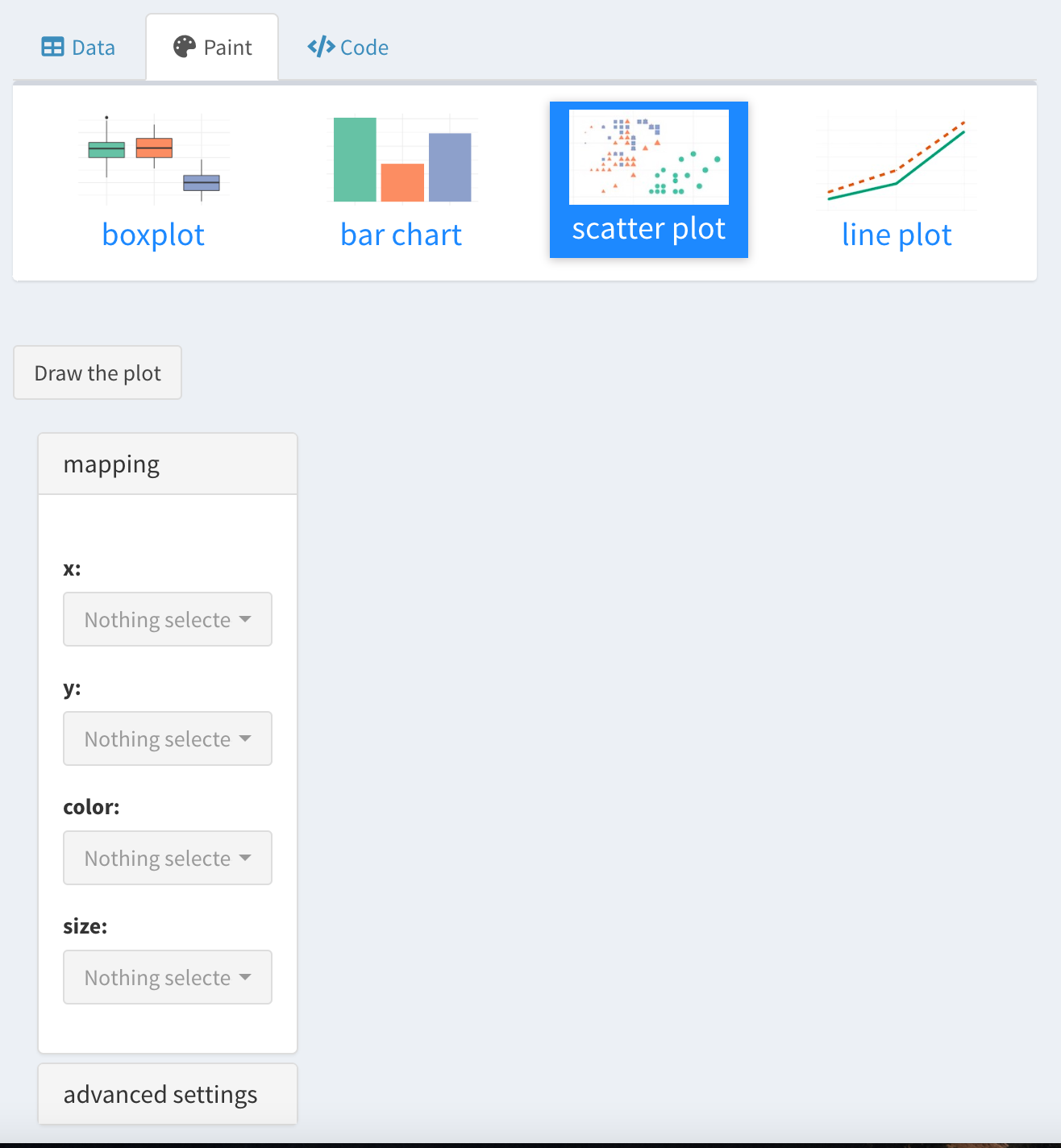
Paint page.
What’s more, in order to meet different aesthetic needs, it also allows users to freely choose colors for their plots.
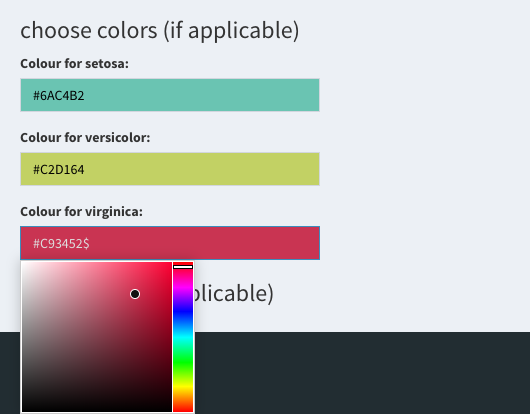
Paint page.
Once all the mapping variables and setting options are chosen, users can click the Draw the plot button and the plot will show up automatically. Here is an example of a scatter plot drew with the iris data.
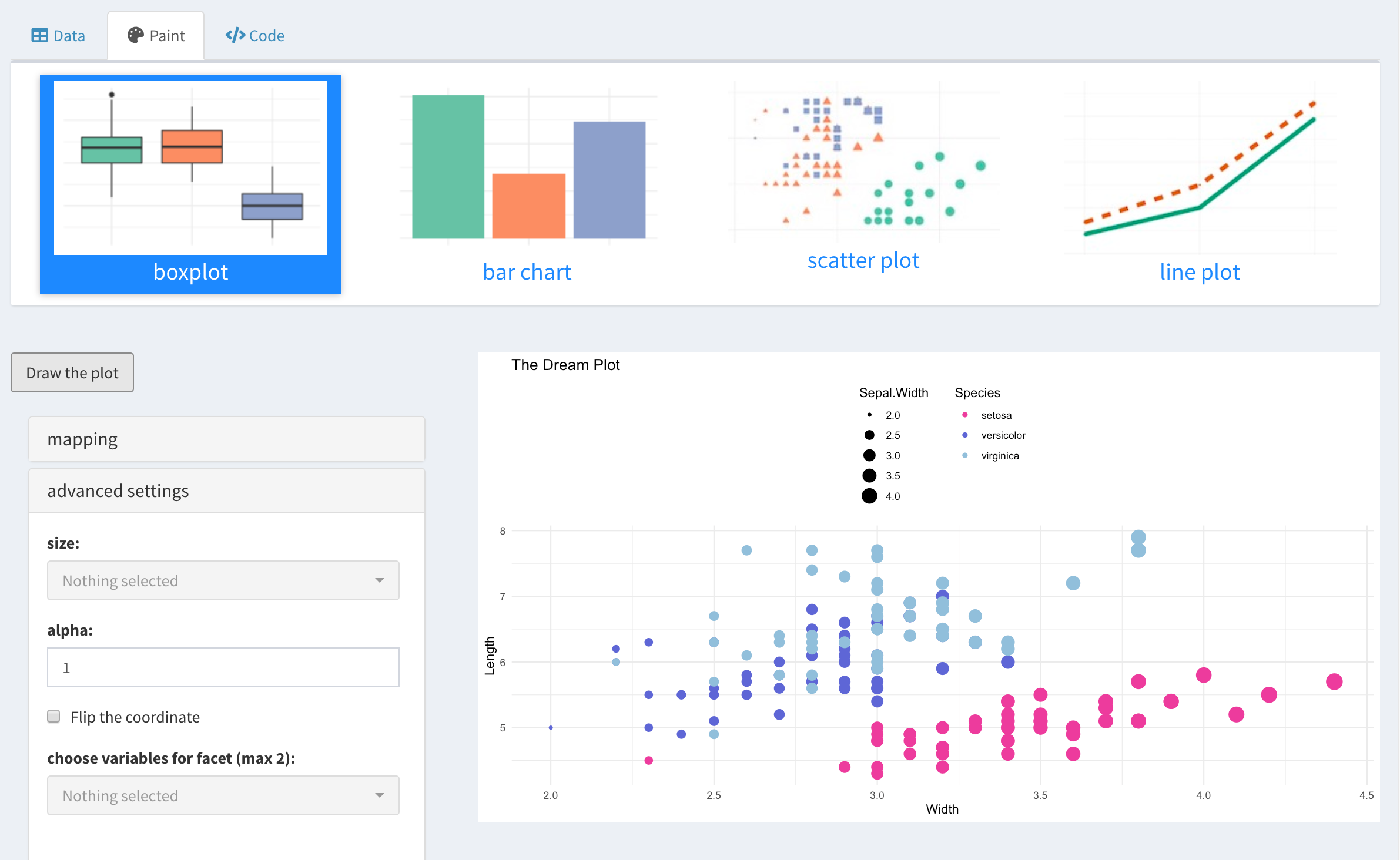
Example plot.
3.Code tab
Although we have included most of the mapping and aesthetic options for drawing a plot in our shiny app, we want to give users more freedom to modify their plots if needed. Therefore, the code for drawing the plot will also be provided once a plot is made. Simply copy and paste the code into R console and run it will generate an identical plot as the shiny app does. Modify the codes and draw your dream plot is also encouraged.
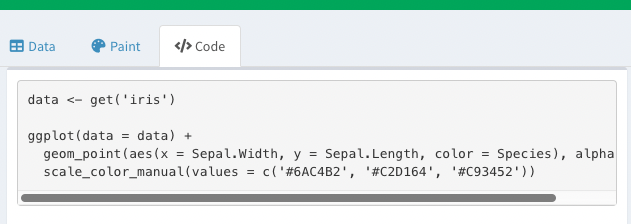
Example code.
Conclusion
In this project, we introduced an open-source R package
ggpaintr for building modularized shiny apps with plotting
functionalities using ggplot2 and the idea of the Grammar
of Graphics. We showcased what ggpaintr can do with two
case studies in this project and discussed the thoughts and decisions we
had in the designs of ggpaintr. We combined the idea of
modularization and the Grammar of Graphics and implemented independent
modules that are responsible for different pieces of the plotting
functionality of a shiny app. ggpaintr makes it easier to
embed reactive plotting functionality in a shiny app and provides
simplicity, flexibility, and extensibility. With the help of
ggpaintr, reactive plotting in a shiny app can be easily
achieved and updated since an expression in ggplot2-alike
syntax can control which modules or reactivity to be included in the
shiny app. So far, we only implemented the most commonly used and basic
features of ggplot2. However, as an open-source
R package, developers can easily develop their own modules,
cover more aspects of ggplot2, and make suggestions and
improvements for ggpaintr. We aim to build a bridge between
ggplot2 and shiny apps, connecting versatility and
interactivity. We hope that ggpaintr can make it easier for
statistics researchers and educators to build interactive data
visualizations, lower the bar on learning ggplot2 while
keeping its elegance and flexibility, and in turn encourage more
students to step into this field.